> ## Documentation Index
> Fetch the complete documentation index at: https://dev.ownright.com/llms.txt
> Use this file to discover all available pages before exploring further.
# Lender and team members
> Your organization and the people within it — the account-level objects in the Lender API
Before creating engagements, it's important to understand the two account-level objects
that represent your organization and its users within the Ownright platform.
## The Lender object
The `Lender` type represents your authenticated lending organization. Think of it as the
"who am I?" object — it tells you about the organization that the current API credentials
belong to.
You can retrieve your lender information using the `lender` query:
```graphql theme={null}
query GetLender {
lender {
name
logoUrl
members {
id
firstName
lastName
email
}
}
}
```
The response includes:
* **name** — Your organization's name as registered with Ownright.
* **logoUrl** — A URL to your organization's logo, if one has been uploaded.
* **members** — The full list of team members in your organization (see below).
## Team members
A `TeamMember` represents an individual user within your lending organization. Team members
are the people who own and manage engagements on your side.
Each team member has:
| Field | Type | Description |
| ----------- | ---------------- | ------------------------------- |
| `id` | `TeamMemberGID!` | Unique identifier in GID format |
| `firstName` | `String` | The team member's first name |
| `lastName` | `String` | The team member's last name |
| `email` | `String` | The team member's email address |
You can also fetch team members directly using the top-level `teamMembers` query:
```graphql theme={null}
query ListTeamMembers {
teamMembers {
id
firstName
lastName
email
}
}
```
**Sample response:**
```json theme={null}
{
"data": {
"teamMembers": [
{
"id": "gid://ownright/TeamMember/1",
"firstName": "Jane",
"lastName": "Smith",
"email": "jane.smith@examplelender.com"
},
{
"id": "gid://ownright/TeamMember/2",
"firstName": "John",
"lastName": "Doe",
"email": "john.doe@examplelender.com"
}
]
}
}
```
## How they relate to engagements
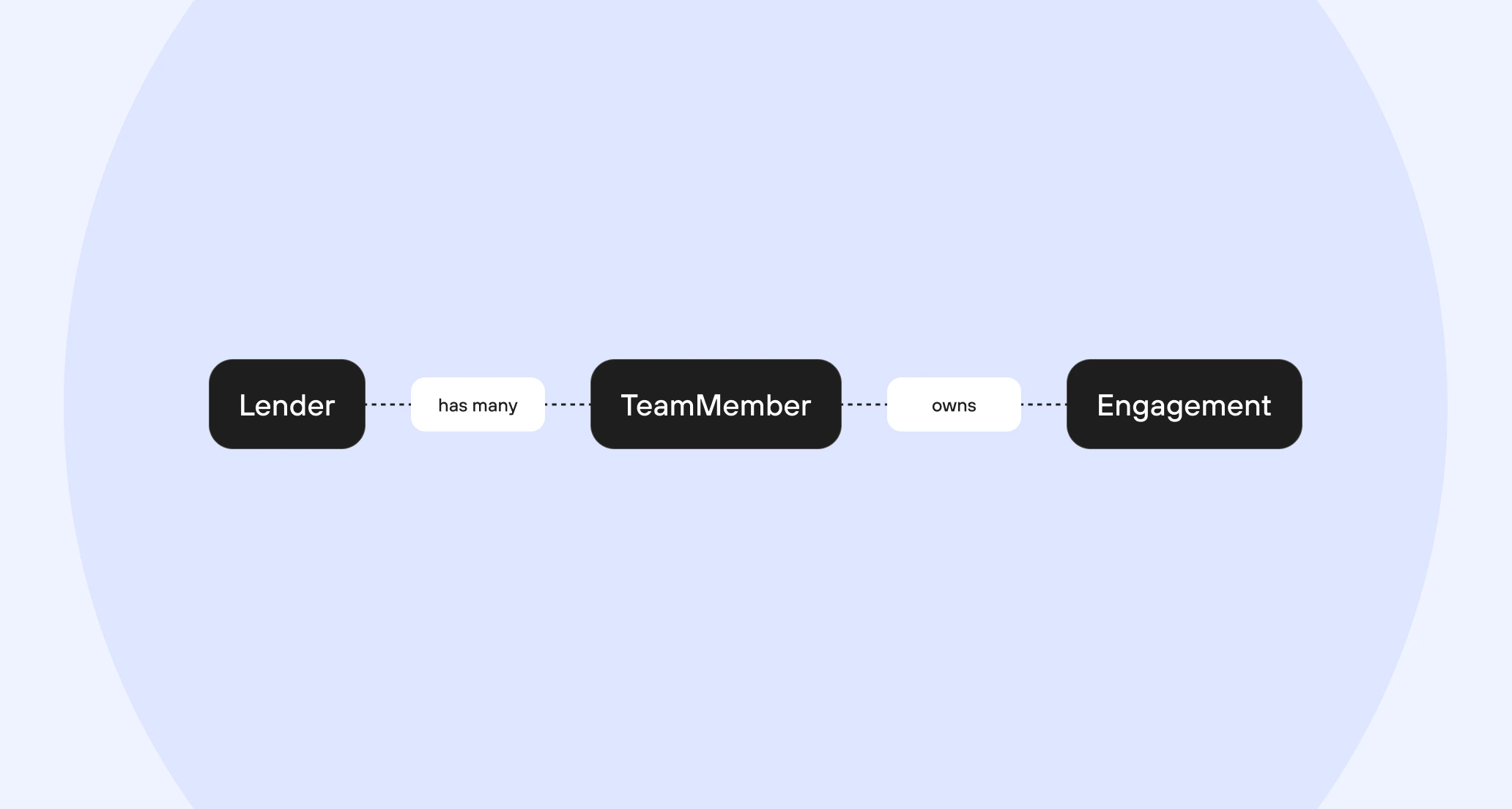
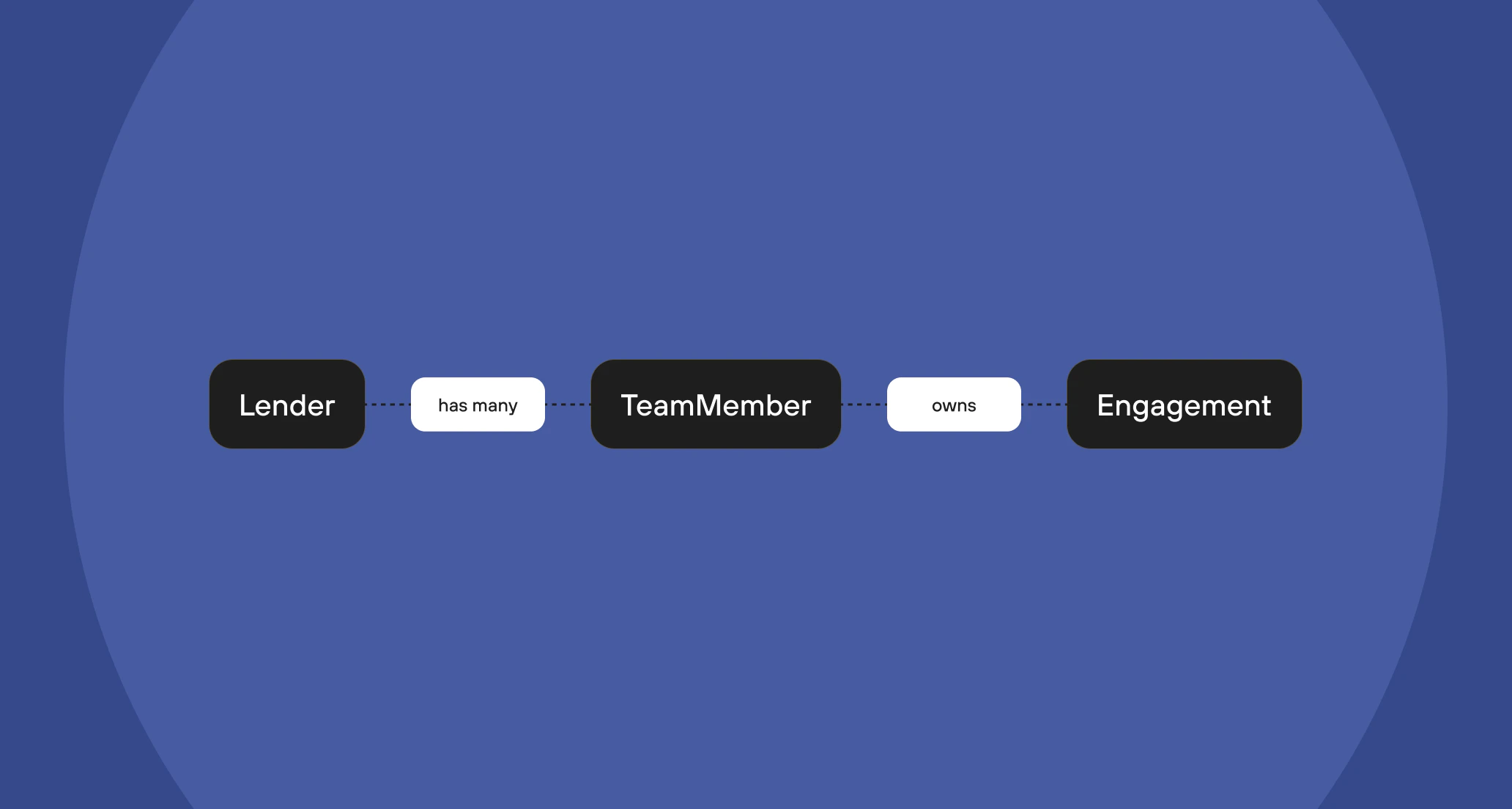
When you create an engagement, you must assign an **owner** — this is the team member
responsible for the file on your side. The `owner` field on `PurchaseEngagementCreateInput`
and `RefinanceEngagementCreateInput` requires a `TeamMemberGID`.
 This means you'll typically want to fetch your team members first to get valid owner IDs
before creating engagements.
If you pass a `TeamMemberGID` that doesn't belong to your organization, the
`engagementCreate` mutation will return a `TEAM_MEMBER_NOT_FOUND` error.
## Practical workflow
A common pattern when integrating with the Lender API:
Call the `teamMembers` query to get the list of people in your organization.
Cache these IDs in your system so you can assign owners when creating
engagements.
Match each `TeamMemberGID` to the corresponding user in your system — for
example, by email address. This allows your internal workflows to
automatically assign the correct owner.
Pass the `TeamMemberGID` as the `owner` field in your `engagementCreate`
mutation. See the [Creating an
engagement](/lender-api/guides/creating-an-engagement) guide for a full
walkthrough.
## Next steps
Submit your first real estate file to Ownright through the API.
Filter, sort, and paginate through your engagements.
This means you'll typically want to fetch your team members first to get valid owner IDs
before creating engagements.
If you pass a `TeamMemberGID` that doesn't belong to your organization, the
`engagementCreate` mutation will return a `TEAM_MEMBER_NOT_FOUND` error.
## Practical workflow
A common pattern when integrating with the Lender API:
Call the `teamMembers` query to get the list of people in your organization.
Cache these IDs in your system so you can assign owners when creating
engagements.
Match each `TeamMemberGID` to the corresponding user in your system — for
example, by email address. This allows your internal workflows to
automatically assign the correct owner.
Pass the `TeamMemberGID` as the `owner` field in your `engagementCreate`
mutation. See the [Creating an
engagement](/lender-api/guides/creating-an-engagement) guide for a full
walkthrough.
## Next steps
Submit your first real estate file to Ownright through the API.
Filter, sort, and paginate through your engagements.