> ## Documentation Index
> Fetch the complete documentation index at: https://dev.ownright.com/llms.txt
> Use this file to discover all available pages before exploring further.
# File uploads
> How to upload mortgage documents using the staged file upload flow
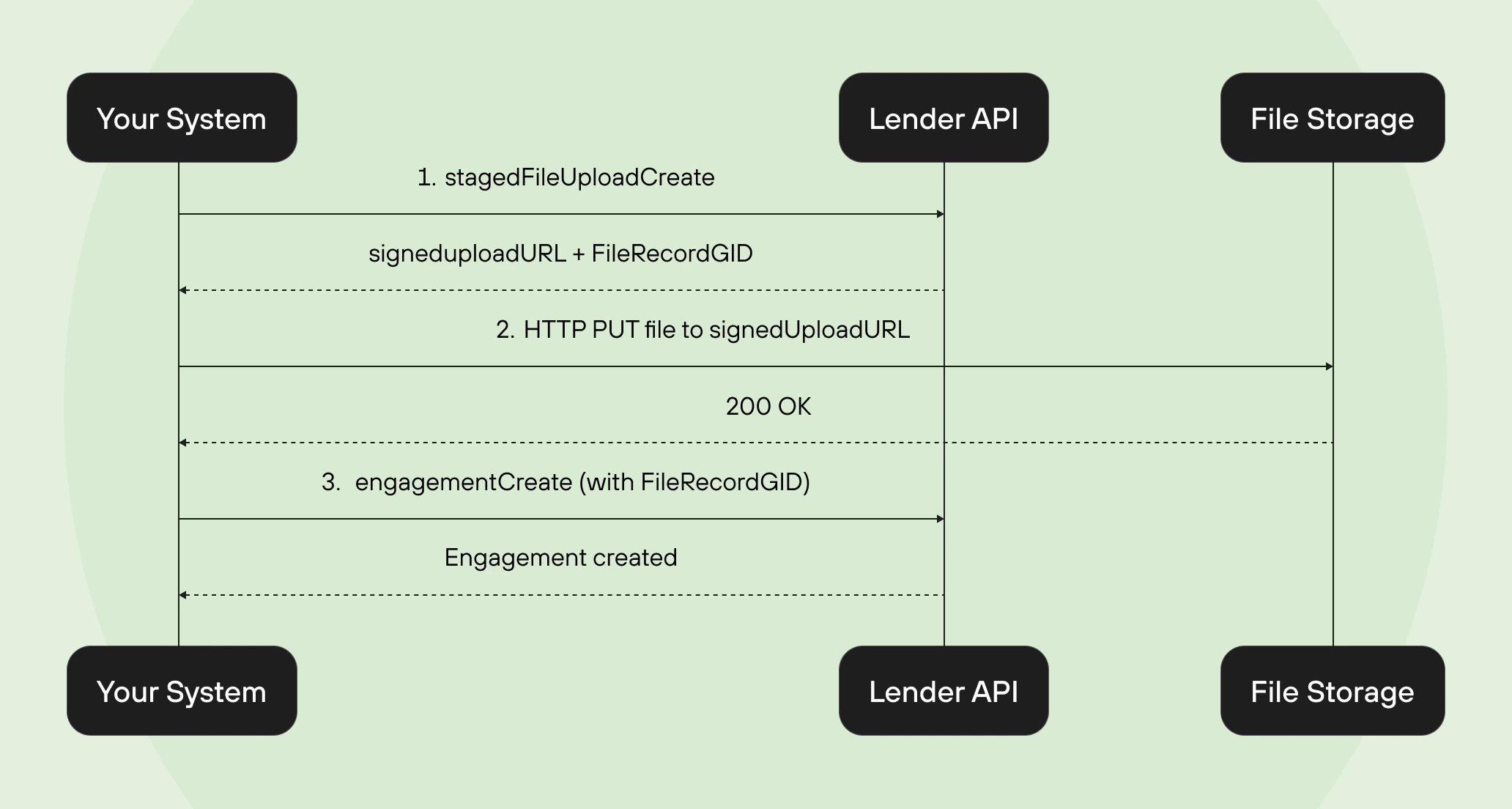
The Lender API uses a **staged file upload** pattern to securely handle document uploads.
Rather than sending file data directly through the GraphQL API, you first create a staged
upload to get a signed URL, upload the file to that URL, and then reference the staged file
when creating an engagement.
## The 3-step upload flow
 Call the `stagedFileUploadCreate` mutation with the filename and MIME type of the
document you want to upload:
```graphql Request theme={null}
mutation CreateStagedUpload($input: StagedFileUploadInput!) {
stagedFileUploadCreate(input: $input) {
stagedFileUpload {
file {
id
filename
staged
}
signedUploadUrl
signedUploadUrlExpiryDate
}
userErrors {
code
field
message
}
}
}
```
**Variables:**
```json Variables theme={null}
{
"input": {
"filename": "mortgage-commitment-letter.pdf",
"mimeType": "DOCUMENT_PDF"
}
}
```
**Response:**
```json Response [expandable] theme={null}
{
"data": {
"stagedFileUploadCreate": {
"stagedFileUpload": {
"file": {
"id": "gid://ownright/FileRecord/123",
"filename": "mortgage-commitment-letter.pdf",
"staged": true
},
"signedUploadUrl": "https://storage.example.com/uploads/abc123?signature=xyz",
"signedUploadUrlExpiryDate": "2025-09-01T15:00:00Z"
},
"userErrors": []
}
}
}
```
The `signedUploadUrl` expires at the date/time indicated by
`signedUploadUrlExpiryDate`. Make sure you upload the file before this time,
or you'll need to create a new staged upload.
Use an HTTP `PUT` request to upload the file binary to the `signedUploadUrl`
returned in step 1. Set the `Content-Type` header to match the file's MIME type:
```bash theme={null}
curl -X PUT \
-H "Content-Type: application/pdf" \
--data-binary @mortgage-commitment-letter.pdf \
"https://storage.example.com/uploads/abc123?signature=xyz"
```
This is a direct upload to the storage service — it does not go through the
GraphQL API and does not require your API authentication headers.
Once the file is uploaded, use the `FileRecordGID` (the `id` from step 1) in
the `newMortgageFileIds` array when creating an engagement:
```graphql Request theme={null}
mutation CreateEngagementWithFiles($input: EngagementCreateInput!) {
engagementCreate(input: $input) {
engagement {
... on PurchaseEngagement {
id
shortId
}
}
userErrors {
code
field
message
}
}
}
```
```json Variables [expandable] theme={null}
{
"input": {
"purchase": {
"owner": "gid://ownright/TeamMember/1",
"closingDate": "2025-09-15",
"clients": [
{
"firstName": "Jane",
"lastName": "Doe",
"email": "jane.doe@example.com"
}
],
"newMortgageFileIds": [
"gid://ownright/FileRecord/123"
],
"propertyAddress": {
"street": "123 Main Street",
"city": "Toronto",
"province": "ONTARIO",
"postalCode": "M5V 2T6",
"country": "CANADA"
}
}
}
}
```
## Uploading multiple files
You can upload multiple files by repeating steps 1 and 2 for each file, then passing
all of the `FileRecordGID` values in the `newMortgageFileIds` array:
```json theme={null}
{
"newMortgageFileIds": [
"gid://ownright/FileRecord/123",
"gid://ownright/FileRecord/124",
"gid://ownright/FileRecord/125"
]
}
```
## Supported MIME types
The `FileMimeType` enum defines the file types you can upload:
| Enum value | MIME type | Description |
| --------------- | -------------------------------------------------------------------------- | -------------- |
| `DOCUMENT_PDF` | `application/pdf` | PDF documents |
| `DOCUMENT_DOC` | `application/msword` | Word documents |
| `DOCUMENT_DOCX` | `application/vnd.openxmlformats-officedocument.wordprocessingml.documents` | Word documents |
| `IMAGE_JPEG` | `image/jpeg` | JPEG images |
| `IMAGE_PNG` | `image/png` | PNG images |
| `IMAGE_HEIC` | `image/heic` | HEIC images |
| `IMAGE_TIFF` | `image/tiff` | TIFF images |
## Error handling
### Staged upload errors
The `stagedFileUploadCreate` mutation can return:
| Code | Description |
| ------------------ | ----------------------------------------------- |
| `INVALID_FILENAME` | The supplied filename is invalid or unsupported |
### Engagement creation errors (file-related)
When passing file IDs to `engagementCreate`, you may encounter:
| Code | Description |
| ------------------------ | ------------------------------------------------------------ |
| `FILE_RECORD_NOT_FOUND` | A `FileRecordGID` in `newMortgageFileIds` could not be found |
| `FILE_RECORD_NOT_STAGED` | The file hasn't been uploaded to the signed URL yet |
The `FILE_RECORD_NOT_STAGED` error means you created the staged upload (step
1. but haven't completed the actual file upload (step 2) before trying to use
the file in step 3. Make sure the HTTP PUT to the signed URL completes
successfully before referencing the file.
## Next steps
Explore all queries, mutations, and types available in the Lender API.
Stay up to date with changes to the Lender API.
Call the `stagedFileUploadCreate` mutation with the filename and MIME type of the
document you want to upload:
```graphql Request theme={null}
mutation CreateStagedUpload($input: StagedFileUploadInput!) {
stagedFileUploadCreate(input: $input) {
stagedFileUpload {
file {
id
filename
staged
}
signedUploadUrl
signedUploadUrlExpiryDate
}
userErrors {
code
field
message
}
}
}
```
**Variables:**
```json Variables theme={null}
{
"input": {
"filename": "mortgage-commitment-letter.pdf",
"mimeType": "DOCUMENT_PDF"
}
}
```
**Response:**
```json Response [expandable] theme={null}
{
"data": {
"stagedFileUploadCreate": {
"stagedFileUpload": {
"file": {
"id": "gid://ownright/FileRecord/123",
"filename": "mortgage-commitment-letter.pdf",
"staged": true
},
"signedUploadUrl": "https://storage.example.com/uploads/abc123?signature=xyz",
"signedUploadUrlExpiryDate": "2025-09-01T15:00:00Z"
},
"userErrors": []
}
}
}
```
The `signedUploadUrl` expires at the date/time indicated by
`signedUploadUrlExpiryDate`. Make sure you upload the file before this time,
or you'll need to create a new staged upload.
Use an HTTP `PUT` request to upload the file binary to the `signedUploadUrl`
returned in step 1. Set the `Content-Type` header to match the file's MIME type:
```bash theme={null}
curl -X PUT \
-H "Content-Type: application/pdf" \
--data-binary @mortgage-commitment-letter.pdf \
"https://storage.example.com/uploads/abc123?signature=xyz"
```
This is a direct upload to the storage service — it does not go through the
GraphQL API and does not require your API authentication headers.
Once the file is uploaded, use the `FileRecordGID` (the `id` from step 1) in
the `newMortgageFileIds` array when creating an engagement:
```graphql Request theme={null}
mutation CreateEngagementWithFiles($input: EngagementCreateInput!) {
engagementCreate(input: $input) {
engagement {
... on PurchaseEngagement {
id
shortId
}
}
userErrors {
code
field
message
}
}
}
```
```json Variables [expandable] theme={null}
{
"input": {
"purchase": {
"owner": "gid://ownright/TeamMember/1",
"closingDate": "2025-09-15",
"clients": [
{
"firstName": "Jane",
"lastName": "Doe",
"email": "jane.doe@example.com"
}
],
"newMortgageFileIds": [
"gid://ownright/FileRecord/123"
],
"propertyAddress": {
"street": "123 Main Street",
"city": "Toronto",
"province": "ONTARIO",
"postalCode": "M5V 2T6",
"country": "CANADA"
}
}
}
}
```
## Uploading multiple files
You can upload multiple files by repeating steps 1 and 2 for each file, then passing
all of the `FileRecordGID` values in the `newMortgageFileIds` array:
```json theme={null}
{
"newMortgageFileIds": [
"gid://ownright/FileRecord/123",
"gid://ownright/FileRecord/124",
"gid://ownright/FileRecord/125"
]
}
```
## Supported MIME types
The `FileMimeType` enum defines the file types you can upload:
| Enum value | MIME type | Description |
| --------------- | -------------------------------------------------------------------------- | -------------- |
| `DOCUMENT_PDF` | `application/pdf` | PDF documents |
| `DOCUMENT_DOC` | `application/msword` | Word documents |
| `DOCUMENT_DOCX` | `application/vnd.openxmlformats-officedocument.wordprocessingml.documents` | Word documents |
| `IMAGE_JPEG` | `image/jpeg` | JPEG images |
| `IMAGE_PNG` | `image/png` | PNG images |
| `IMAGE_HEIC` | `image/heic` | HEIC images |
| `IMAGE_TIFF` | `image/tiff` | TIFF images |
## Error handling
### Staged upload errors
The `stagedFileUploadCreate` mutation can return:
| Code | Description |
| ------------------ | ----------------------------------------------- |
| `INVALID_FILENAME` | The supplied filename is invalid or unsupported |
### Engagement creation errors (file-related)
When passing file IDs to `engagementCreate`, you may encounter:
| Code | Description |
| ------------------------ | ------------------------------------------------------------ |
| `FILE_RECORD_NOT_FOUND` | A `FileRecordGID` in `newMortgageFileIds` could not be found |
| `FILE_RECORD_NOT_STAGED` | The file hasn't been uploaded to the signed URL yet |
The `FILE_RECORD_NOT_STAGED` error means you created the staged upload (step
1. but haven't completed the actual file upload (step 2) before trying to use
the file in step 3. Make sure the HTTP PUT to the signed URL completes
successfully before referencing the file.
## Next steps
Explore all queries, mutations, and types available in the Lender API.
Stay up to date with changes to the Lender API.