

The Lender object
TheLender type represents your authenticated lending organization. Think of it as the
“who am I?” object — it tells you about the organization that the current API credentials
belong to.
You can retrieve your lender information using the lender query:
- name — Your organization’s name as registered with Ownright.
- logoUrl — A URL to your organization’s logo, if one has been uploaded.
- members — The full list of team members in your organization (see below).
Team members
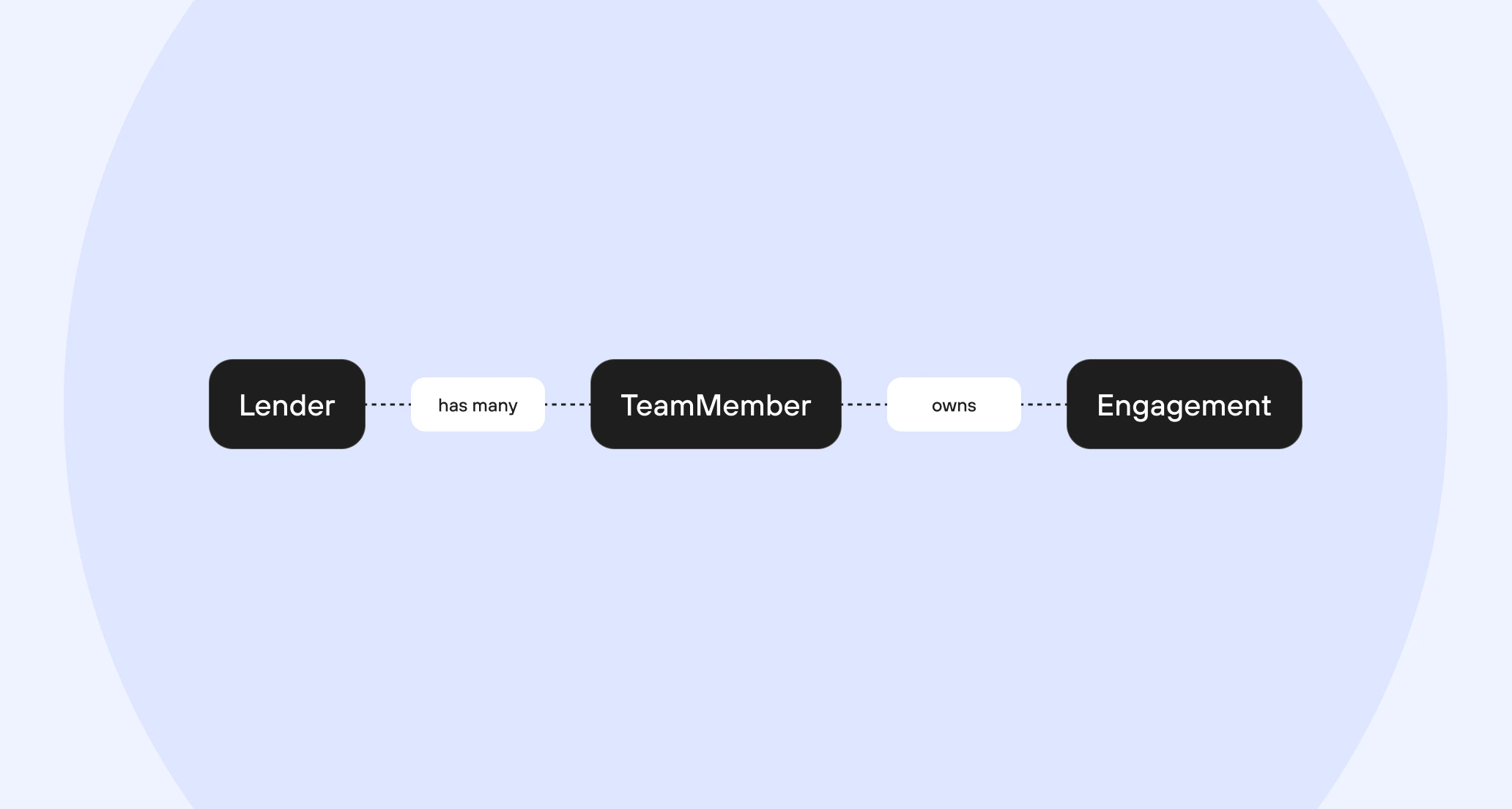
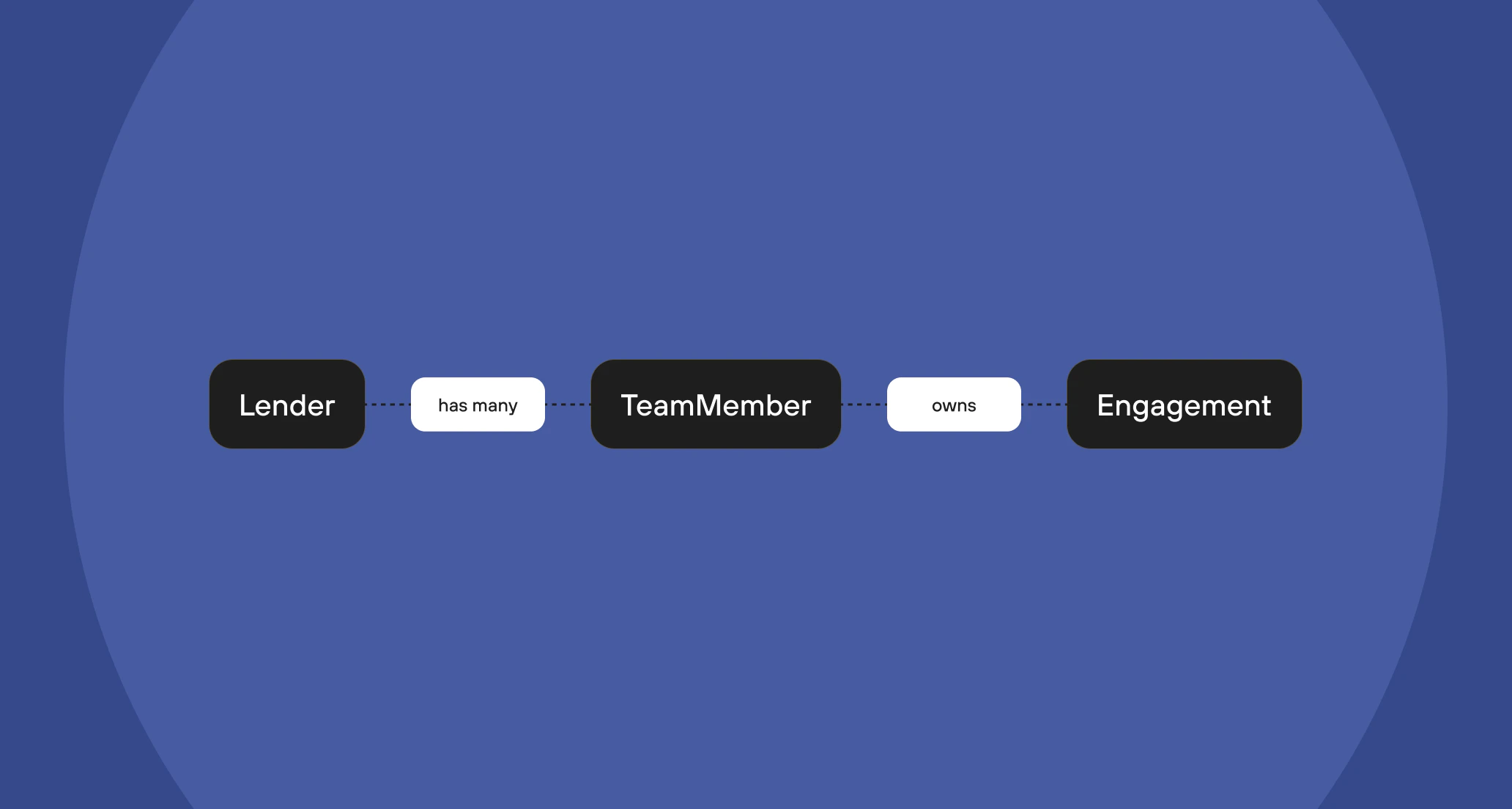
ATeamMember represents an individual user within your lending organization. Team members
are the people who own and manage engagements on your side.
Each team member has:
You can also fetch team members directly using the top-level
teamMembers query:
How they relate to engagements
When you create an engagement, you must assign an owner — this is the team member responsible for the file on your side. Theowner field on PurchaseEngagementCreateInput
and RefinanceEngagementCreateInput requires a TeamMemberGID.
Practical workflow
A common pattern when integrating with the Lender API:1
Fetch your team members
Call the
teamMembers query to get the list of people in your organization.
Cache these IDs in your system so you can assign owners when creating
engagements.2
Map team members to your internal users
Match each
TeamMemberGID to the corresponding user in your system — for
example, by email address. This allows your internal workflows to
automatically assign the correct owner.3
Use the owner ID when creating engagements
Pass the
TeamMemberGID as the owner field in your engagementCreate
mutation. See the Creating an
engagement guide for a full
walkthrough.Next steps
Creating an engagement
Submit your first real estate file to Ownright through the API.
Searching engagements
Filter, sort, and paginate through your engagements.