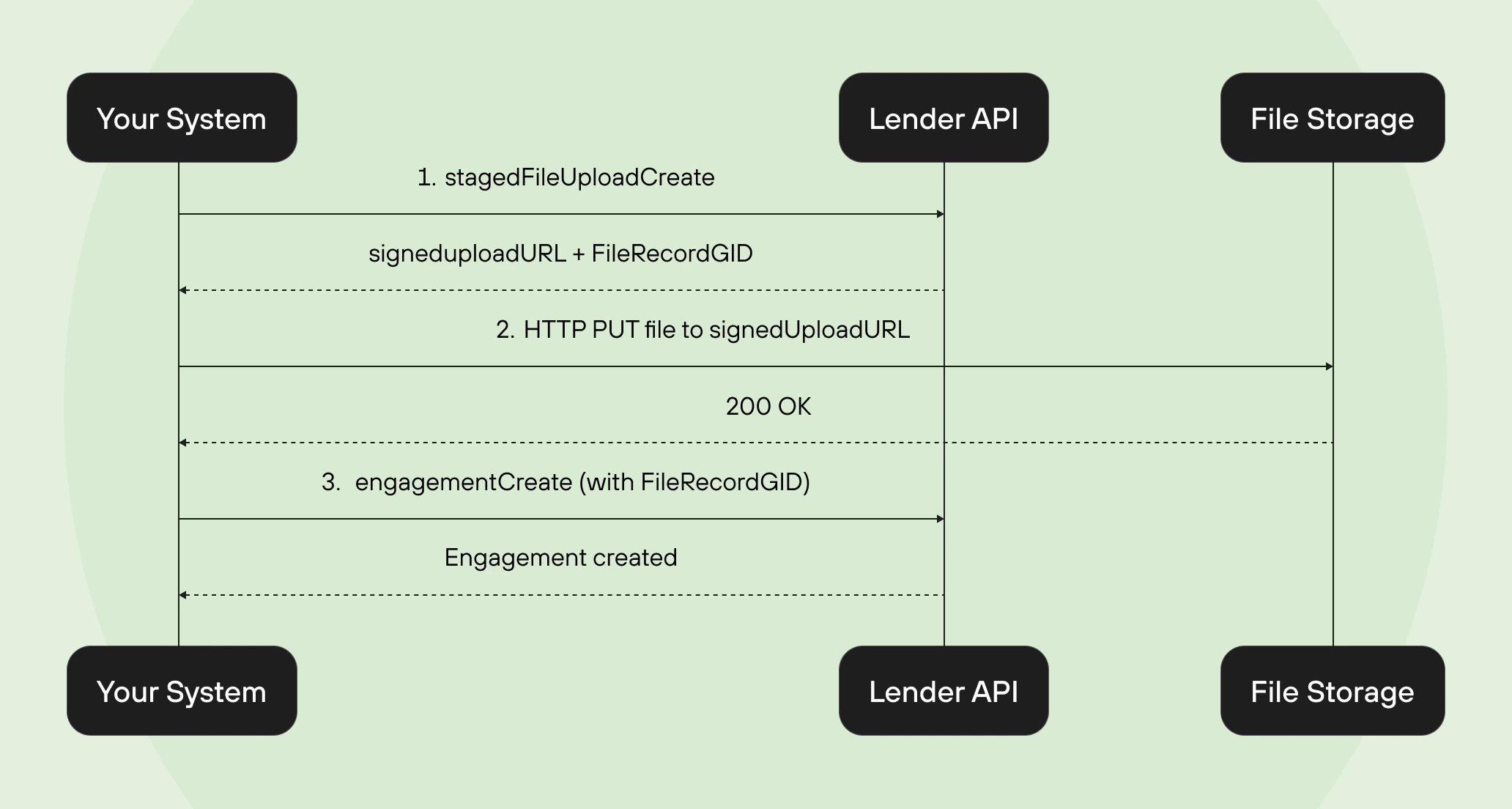
The Lender API uses a staged file upload pattern to securely handle document uploads. Rather than sending file data directly through the GraphQL API, you first create a staged upload to get a signed URL, upload the file to that URL, and then reference the staged file when creating an engagement.

The 3-step upload flow
1

Create a staged file upload

Call the stagedFileUploadCreate mutation with the filename and MIME type of the document you want to upload:
Request
mutation CreateStagedUpload($input: StagedFileUploadInput!) {
  stagedFileUploadCreate(input: $input) {
    stagedFileUpload {
      file {
        id
        filename
        staged
      }
      signedUploadUrl
      signedUploadUrlExpiryDate
    }
    userErrors {
      code
      field
      message
    }
  }
}
Variables:
Variables
{
  "input": {
    "filename": "mortgage-commitment-letter.pdf",
    "mimeType": "DOCUMENT_PDF"
  }
}
Response:
Response
{
  "data": {
    "stagedFileUploadCreate": {
      "stagedFileUpload": {
        "file": {
          "id": "gid://ownright/FileRecord/123",
          "filename": "mortgage-commitment-letter.pdf",
          "staged": true
        },
        "signedUploadUrl": "https://storage.example.com/uploads/abc123?signature=xyz",
        "signedUploadUrlExpiryDate": "2025-09-01T15:00:00Z"
      },
      "userErrors": []
    }
  }
}
The signedUploadUrl expires at the date/time indicated by signedUploadUrlExpiryDate. Make sure you upload the file before this time, or you’ll need to create a new staged upload.
2

Upload the file to the signed URL

Use an HTTP PUT request to upload the file binary to the signedUploadUrl returned in step 1. Set the Content-Type header to match the file’s MIME type:
curl -X PUT \
  -H "Content-Type: application/pdf" \
  --data-binary @mortgage-commitment-letter.pdf \
  "https://storage.example.com/uploads/abc123?signature=xyz"
This is a direct upload to the storage service — it does not go through the GraphQL API and does not require your API authentication headers.
3

Pass the file to an engagement

Once the file is uploaded, use the FileRecordGID (the id from step 1) in the newMortgageFileIds array when creating an engagement:
Request
mutation CreateEngagementWithFiles($input: EngagementCreateInput!) {
  engagementCreate(input: $input) {
    engagement {
      ... on PurchaseEngagement {
        id
        shortId
      }
    }
    userErrors {
      code
      field
      message
    }
  }
}
Variables
{
  "input": {
    "purchase": {
      "owner": "gid://ownright/TeamMember/1",
      "closingDate": "2025-09-15",
      "clients": [
        {
          "firstName": "Jane",
          "lastName": "Doe",
          "email": "[email protected]"
        }
      ],
      "newMortgageFileIds": [
        "gid://ownright/FileRecord/123"
      ],
      "propertyAddress": {
        "street": "123 Main Street",
        "city": "Toronto",
        "province": "ONTARIO",
        "postalCode": "M5V 2T6",
        "country": "CANADA"
      }
    }
  }
}

Uploading multiple files

You can upload multiple files by repeating steps 1 and 2 for each file, then passing all of the FileRecordGID values in the newMortgageFileIds array:
{
  "newMortgageFileIds": [
    "gid://ownright/FileRecord/123",
    "gid://ownright/FileRecord/124",
    "gid://ownright/FileRecord/125"
  ]
}

Supported MIME types

The FileMimeType enum defines the file types you can upload:
Enum valueMIME typeDescription
DOCUMENT_PDFapplication/pdfPDF documents
DOCUMENT_DOCapplication/mswordWord documents
DOCUMENT_DOCXapplication/vnd.openxmlformats-officedocument.wordprocessingml.documentsWord documents
IMAGE_JPEGimage/jpegJPEG images
IMAGE_PNGimage/pngPNG images
IMAGE_HEICimage/heicHEIC images
IMAGE_TIFFimage/tiffTIFF images

Error handling

Staged upload errors

The stagedFileUploadCreate mutation can return:
CodeDescription
INVALID_FILENAMEThe supplied filename is invalid or unsupported
When passing file IDs to engagementCreate, you may encounter:
CodeDescription
FILE_RECORD_NOT_FOUNDA FileRecordGID in newMortgageFileIds could not be found
FILE_RECORD_NOT_STAGEDThe file hasn’t been uploaded to the signed URL yet
The FILE_RECORD_NOT_STAGED error means you created the staged upload (step 1) but haven’t completed the actual file upload (step 2) before trying to use the file in step 3. Make sure the HTTP PUT to the signed URL completes successfully before referencing the file.